The Border tool in Youzign is not your typical border tool found in some other drag n’ drop graphics apps. When enabled on a certain element on your canvas such as text, image, or shape it gives it a distinctive effect so it pops on your design.
When applied to texts, the Border tool accentuates the edges of each letter. This is very handy when you need to outline a text or shape prior to image clipping.
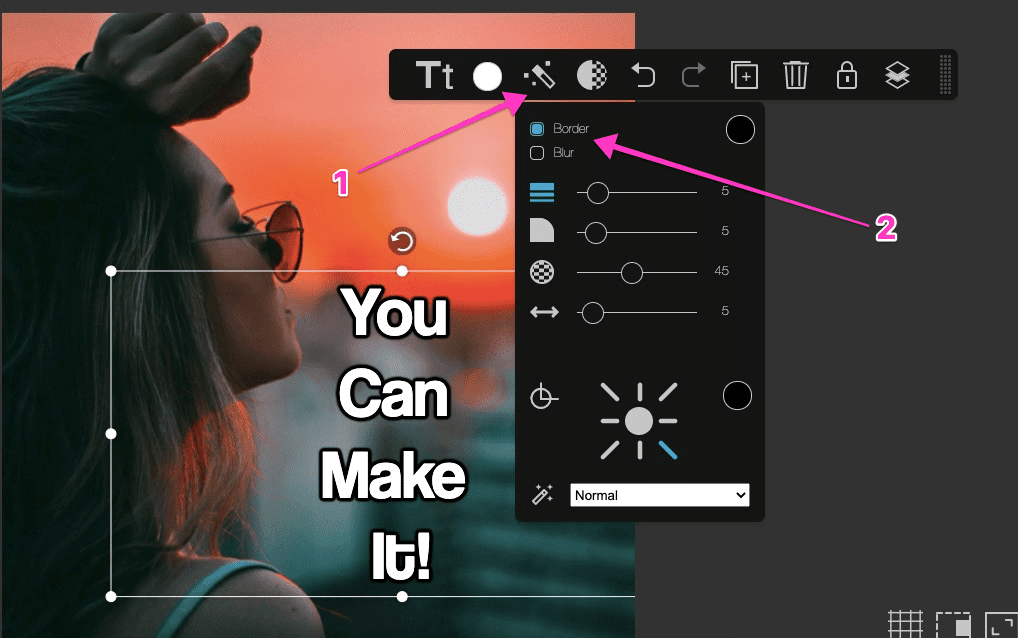
To use this effect:
1. Select the element/ object that you wish to outline;
2. Choose "Effects" tools from the tools panel; and
3. Tick the border box.
You can also adjust the thickness of your border on the Size slider and change its color using the Color Picker tool (little circle just next to the border option).
When applied to images, the Border tool does not outline the exact edges of the image but instead its frame. This allows you to create quick borders for your image. The direction of the border is inwards for images, while outwards for shapes and texts.
Related tutorial: No Fill Text