
Using the folders feature helps you stay organized with your saved designs.
Here are the steps on how to add a new folder in Youzign.
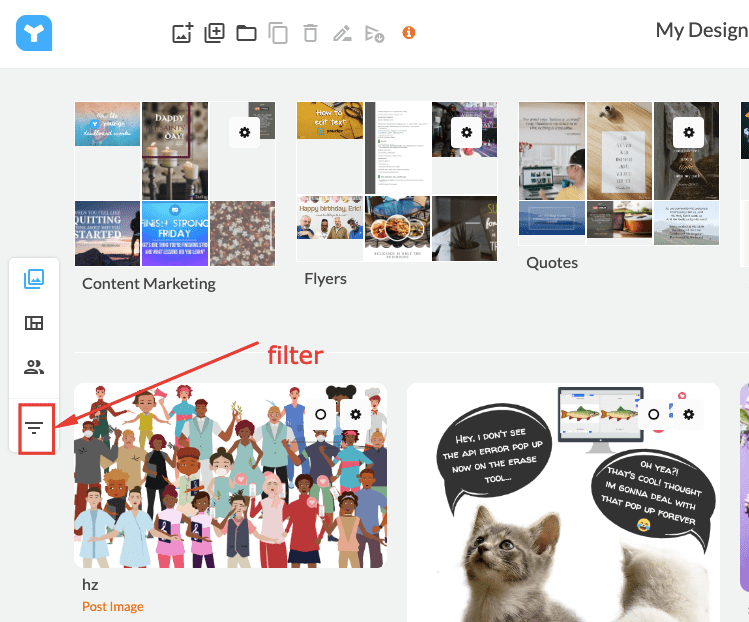
1. Login to your Youzign dashboard and click the Filter icon from the left side menu.
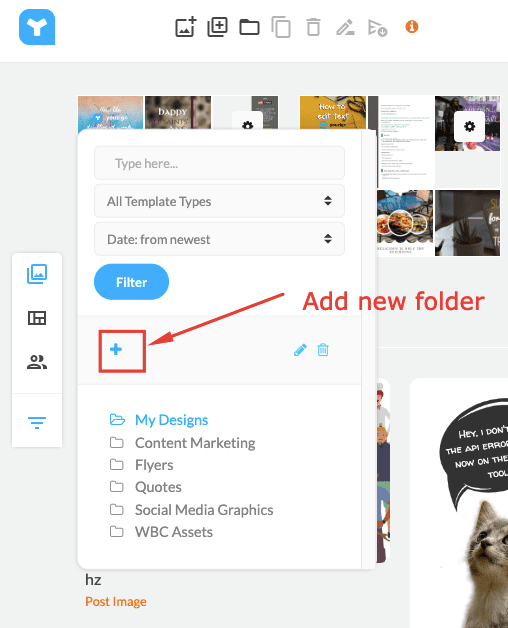
2. Click the + icon to add a new folder.
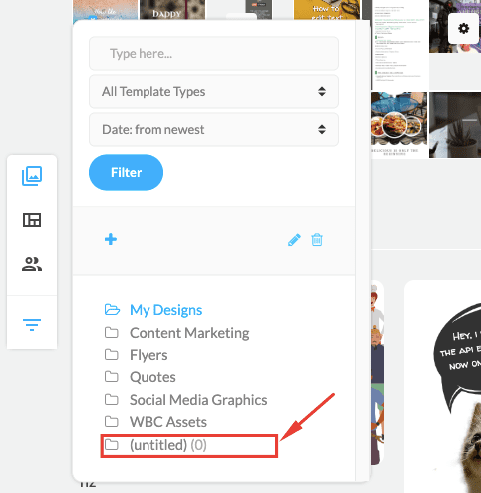
3. This will add a new "Untitled" folder. Close the filter pop-up by clicking on the filter icon again.
To see your new folder on your dashboard, please refresh the page.
4. Make sure that your folders are visible on your dashboard. To do so, simply click on the Toggle Folder switch.
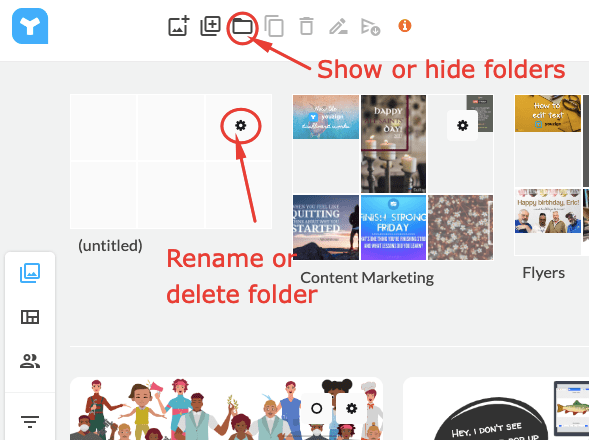
You can Rename or Delete a folder by clicking on the gear icon on a specified folder.