
1. Launch Mockzign on your desktop
On Mac it should be in your Application folder, on Windows under the Programs folder.
2. Upload an image
Click on the + icon to upload an image from your desktop.
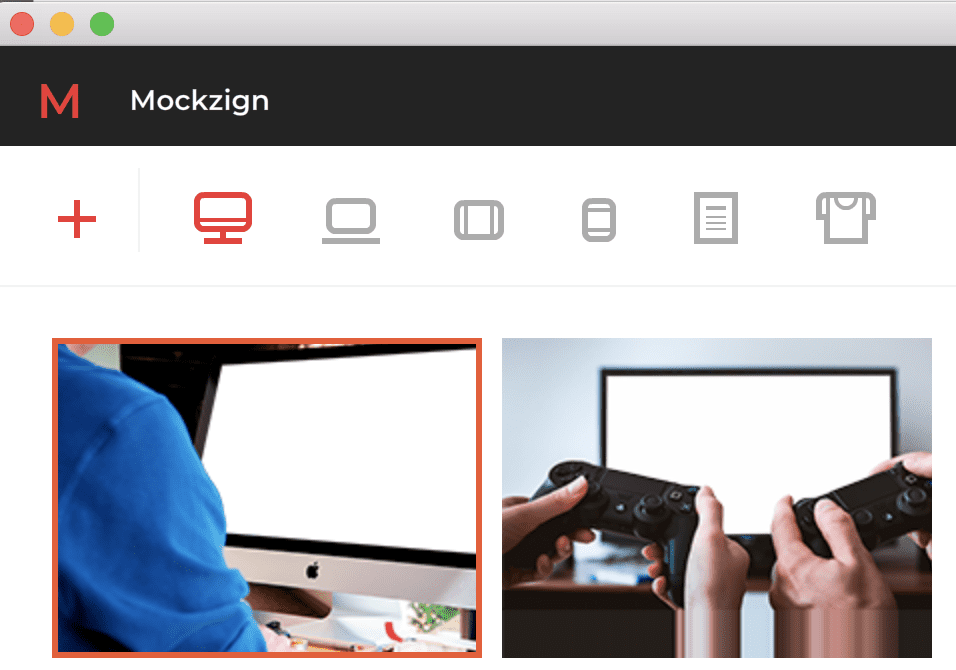
3. Choose your preferred mockup
Navigate through the different types of mockup until you find one that suits you.
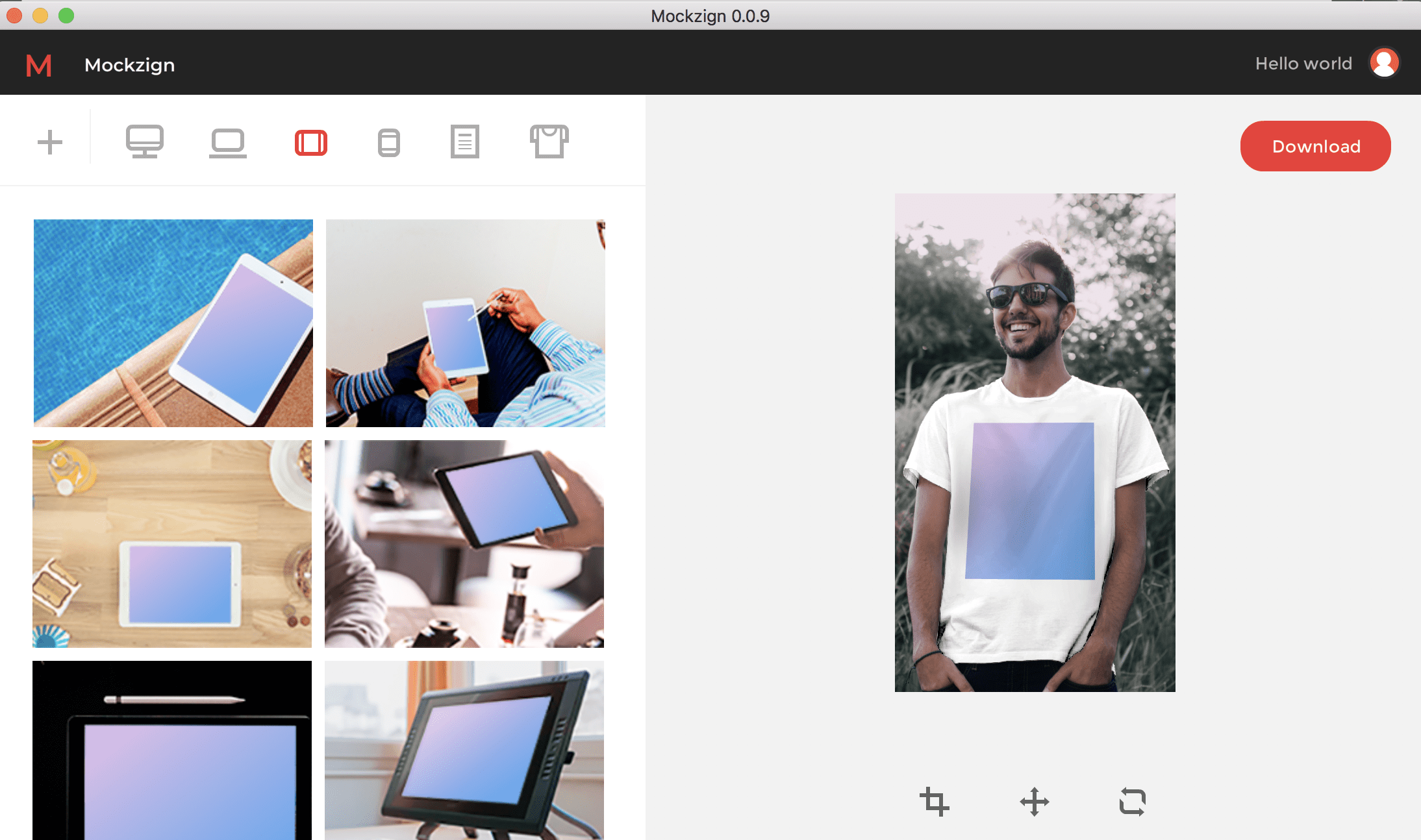
5. Crop, reposition or reset

You may crop your mockup, Reposition it or reset the crop/position using the buttons below the mockup preview on the right.
5. Download your mockup
Once you have selected your mockup, click on the Download button in the top right to download it to your desktop